How to Turn PowerPoint Slides Into Effective Flashcards
Turn a PowerPoint into effective flashcards by selecting one teachable section, restoring the context hidden by slide layouts, converting each verified idea into one clear retrieval prompt, and checking every answer against the original slide and speaker notes.
Create flashcards from your notes
Lecture slides look organised because headings, diagrams, animations, and the lecturer’s explanation supply context. Once the text is extracted, that structure can disappear. A bullet such as “increases affinity” may no longer identify what changes, what it binds to, or under which conditions.
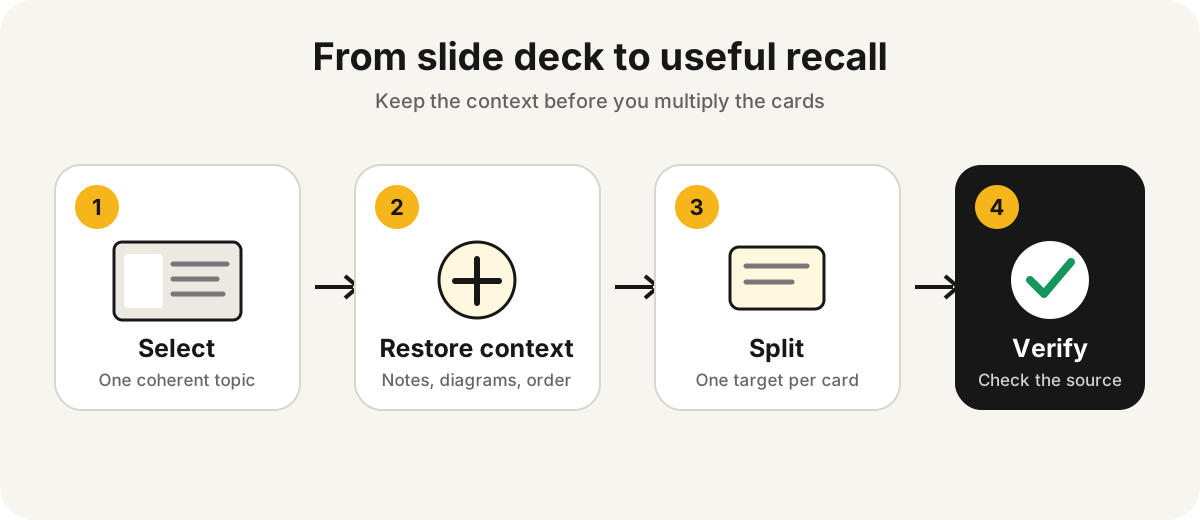
That is why simply uploading a whole deck and accepting every generated card often creates a large but weak revision set. The useful workflow is smaller: choose a coherent slide range, restore missing context, create one retrieval target per card, and verify the result against the original presentation.
Quick answer: how do you turn a PowerPoint into flashcards?
Use this seven-step process:
- Choose one examinable topic rather than the entire slide deck.
- Check slide order, speaker notes, diagrams, tables, and animation builds.
- Extract complete facts, relationships, processes, and examples.
- Remove repeated headers, decorative text, and administrative slides.
- Convert each verified idea into one clear question-and-answer pair.
- Add diagram, sequence, comparison, and application cards where the topic requires them.
- Review a small sample against the slides before generating or keeping the full deck.
Aripsy accepts PowerPoint .pptx files as a document input. Signed-in Free users can try one successful document upload; ongoing PDF, PowerPoint, and Word uploads up to 15MB require Pro. Aripsy extracts document text, so complex visuals, equations, reading order, and formatting still need checking.
Why slide decks produce weak flashcards
A presentation is not a textbook chapter. Slides are cues for a live explanation, and the important meaning may be distributed across several places:
- The visible title defines the topic.
- A bullet contains only part of a sentence.
- A diagram carries the relationship.
- The lecturer adds the causal explanation verbally.
- Speaker notes contain an exception or worked example.
- An animation reveals a process one stage at a time.
If extraction captures only the bullet text, a generator may produce a fluent answer from incomplete evidence. The card can sound correct while testing the wrong relationship.
The solution is not to copy more text into every answer. It is to rebuild enough context before making cards.
Start with one coherent slide range
Treat the deck as a collection of topics, not one source block. A practical section might begin with a learning objective and end before the next major heading. Ten dense slides may need several study sets; 25 simple recap slides may fit into one.
Before conversion, remove or skip:
- Title, timetable, housekeeping, and reading-list slides.
- Repeated module headers and footers.
- Duplicate recap slides.
- Answers shown immediately after practice questions.
- Material marked as optional when it is outside your assessment.
Keep slide numbers in the draft notes. A source marker such as [slide 18] makes it much faster to resolve a disputed answer later.
If your immediate goal is a structured summary rather than cards, use the separate lecture-slides-to-notes workflow. This guide begins at the next step: turning checked slide content into retrieval practice.
Check what the slide text leaves out
Open the presentation in its intended viewer before relying on extracted text. Inspect four elements that are commonly lost or flattened.
Speaker notes
Speaker notes may contain definitions, examples, references, or the explanation behind a short bullet. They may also contain private teaching reminders that are not meant to become revision material. Decide deliberately what belongs in the study set.
Diagrams and charts
Text extraction may capture labels without preserving their positions or connections. A graph legend separated from its axes can reverse the meaning. For a diagram-heavy slide, write a one-sentence interpretation or create an image-based prompt instead of treating the labels as prose.
Animation order
A process may appear complete on the final slide while the teaching sequence was revealed in stages. Record the intended order explicitly before creating sequence cards.
Tables and multi-column layouts
Rows and columns can merge into the wrong reading order. Reconstruct the relationship manually and check units, headings, and conditions.
Build a small source map before writing cards
For the chosen slide range, sort the material into five types:
| Source type | What to capture | Useful card form |
|---|---|---|
| Definition | Exact meaning and required qualifier | Direct question or cloze |
| Relationship | What changes, in which direction, and why | Cause-and-effect question |
| Process | Ordered stages and important transitions | Sequence or “what happens next?” card |
| Comparison | Shared and distinguishing features | Contrast card or two-column prompt |
| Application | Worked example, scenario, data, or calculation | Short applied question |
This map prevents a common failure: creating 40 definition cards from a lesson that will be assessed through explanation and application.
Write one retrieval target per card
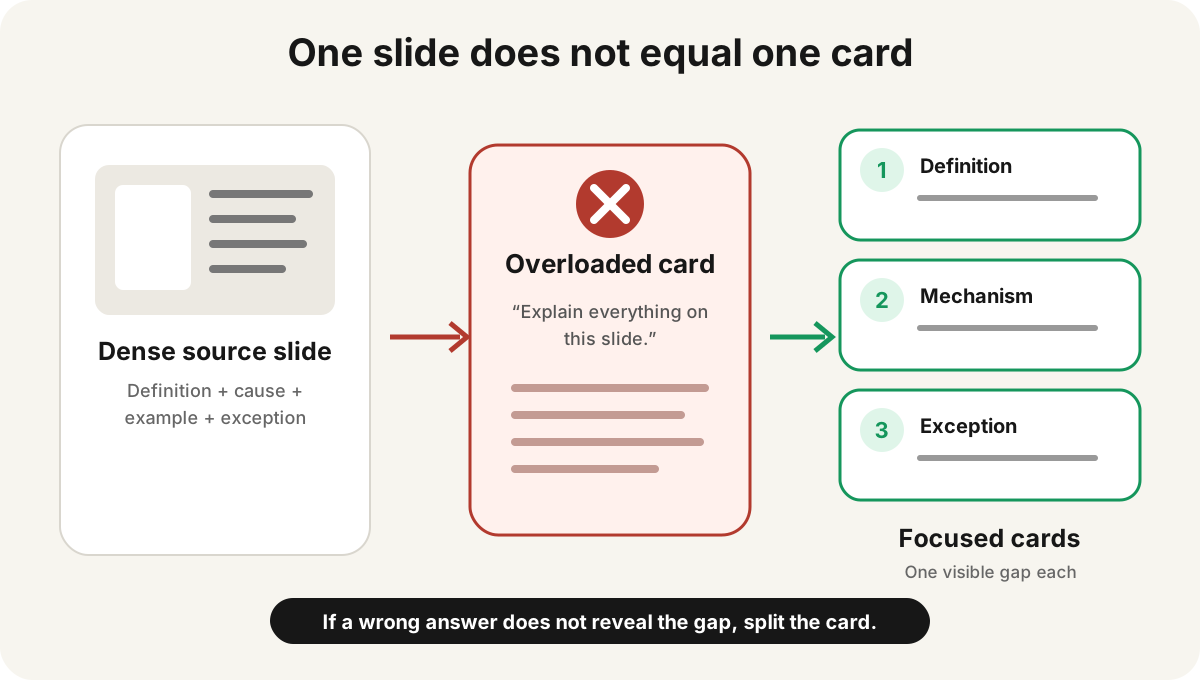
A card should reveal a specific gap. If a prompt asks for six unrelated facts, getting it partly wrong does not tell you what to repair.
Suppose a biology slide says:
Competitive inhibitors resemble the substrate, bind to the active site, and reduce enzyme activity. Their effect can be reduced by increasing substrate concentration.
A weak card asks: “Explain competitive inhibition.” The expected answer is too broad.
A stronger set separates the targets:
- Where does a competitive inhibitor bind? → The enzyme’s active site.
- Why can it bind there? → Its shape is sufficiently similar to the substrate.
- How can its effect be reduced? → Increase substrate concentration so substrate molecules are more likely to occupy the active site.
- What happens to enzyme activity? → It decreases at a given substrate concentration.
The wording should still match the depth and terminology required by your course. Do not add mechanisms that the assigned slides have not established unless you label them as an external addition.
Use more than definition cards
Effective flashcards can test different forms of retrieval:
- Definition: What does a named term mean?
- Direction: If one variable rises, what happens to another?
- Sequence: What comes immediately before or after a stage?
- Discrimination: How does concept A differ from concept B?
- Diagram: Which structure or region is hidden?
- Calculation: What operation or unit is required?
- Application: Which principle explains a short scenario?
- Error correction: What is wrong with a plausible statement?
Avoid copying a full slide onto the answer side. A card is a retrieval prompt, not a miniature page of notes.
A quality checklist for generated cards
Review the first 10 to 20 cards before creating a large deck. Check whether each card:
- Tests one identifiable idea.
- Can be answered without seeing another card.
- Names the subject of pronouns such as “it” or “this.”
- Preserves qualifiers including “usually,” “under these conditions,” or “net.”
- Uses the correct unit, sign, date, quotation, or formula.
- Does not reveal the answer in the wording.
- Avoids vague prompts such as “What is important here?”
- Points back to a slide when verification may be needed.
- Matches a learning objective or assessed skill.
Delete cards that test decorative details or duplicate another prompt. Split cards that contain “and” only when the two parts are genuinely separate retrieval targets.
How to handle diagrams, formulas, and equations
Do not force visual material into plain text when spatial information is the thing being learned.
For a labelled diagram, cover one label or region and ask what belongs there. For a graph, hide the axis label or ask the learner to explain a change in the curve. For an equation, test the meaning of each term, the conditions for using it, and a short calculation separately.
Check superscripts, subscripts, negative signs, Greek letters, and fractions after extraction. A single missing symbol can turn a useful card into a false one.
Screenshots may be appropriate for personal revision when you are permitted to use the teaching material. Do not publish or redistribute slide images without permission.
How Aripsy turns PowerPoint files into study material
In Aripsy, the practical workflow is:
- Open the study tool.
- Upload a supported
.pptxfile or paste a focused slide section as text. - Select the relevant subject, level, and available curriculum context.
- Generate structured notes first when the deck needs context restored.
- Inspect those notes against slide titles, diagrams, tables, and speaker notes.
- Generate flashcards from the checked material.
- Remove weak cards and revise the remainder with active recall.
Aripsy supports .pptx, not the older .ppt format. If a presentation is stored as .ppt, save a copy as .pptx in a compatible presentation application before uploading. Password-protected, corrupted, or unusually formatted files may need to be exported or simplified first.
AI-generated material can contain mistakes. Aripsy does not guarantee that a presentation matches a specification or that every visual relationship has been interpreted correctly. The original slides and current course documents remain the source of truth.
A 20-minute conversion routine
For one topic, try this timed workflow:
| Time | Task |
|---|---|
| 0–3 minutes | Choose the slide range and identify the learning objective |
| 3–7 minutes | Check diagrams, speaker notes, and extraction order |
| 7–12 minutes | Produce concise, source-marked notes |
| 12–17 minutes | Create a small set of focused cards |
| 17–20 minutes | Verify, delete, split, and correct cards |
The time is a control, not a rule. A slide containing a complex proof, case judgment, or biochemical pathway may require longer checking.
Common mistakes to avoid
Uploading an entire module at once
Large inputs make it harder to identify omissions and duplicates. Work by coherent topic.
Memorising bullets without the lecture context
Restore the subject, relationship, and condition behind each fragment before making cards.
Turning every bullet into a card
Some bullets are examples, transitions, or reminders. Keep only material that supports understanding or assessment.
Accepting diagrams as extracted prose
Verify positions, arrows, legends, units, and sequence visually.
Building cards before checking the notes
One extraction error can spread into many prompts. Correct the intermediate notes first.
FAQ
Can Aripsy make flashcards from a PowerPoint?
Yes. Aripsy accepts supported PowerPoint .pptx files, extracts document text, and can turn the material into notes and flashcards. Signed-in Free users can try one successful document upload; ongoing document uploads up to 15MB require Pro. Complex layouts and visual content still need checking.
Can I upload an old .ppt PowerPoint file?
Aripsy’s supported PowerPoint format is .pptx. Open an older .ppt file in compatible presentation software and save a .pptx copy before uploading.
Should I make flashcards directly from slides or create notes first?
Create concise notes first when the slides contain fragments, diagrams, animation builds, or missing lecture context. Direct conversion is more suitable when each slide already contains complete, self-contained facts.
How many flashcards should one PowerPoint produce?
There is no useful fixed ratio. The right number is the number of distinct, assessed ideas you can verify and review. A five-slide process may need more cards than a 20-slide introductory overview.
Can PowerPoint speaker notes become flashcards?
They can provide useful context, but review them first. Speaker notes may include teaching reminders, optional examples, or wording that was never intended as assessed content.
Sources and further reading
- Microsoft Support: Save your presentation file
- Dunlosky et al.: Improving students’ learning with effective learning techniques
- Roediger and Karpicke: Test-enhanced learning
- Aripsy study tool
Next study steps in Aripsy
Turn one focused slide section into a checked study set, then practise retrieval rather than rereading the deck.
Example study workflow
Build recall cards from material you have checked:
Start with a short set of verified notes. Turn one fact or relationship into each card, remove duplicate prompts, and review difficult cards again after a delay instead of only rereading them.
Which workflow should you use?
| Need | Best next step | Aripsy path |
|---|---|---|
| Understand a source | Create structured notes, then verify details. | PDF to notes |
| Remember key facts | Convert definitions and errors into recall cards. | Flashcards |
| Test exam readiness | Use MCQs and mistake review after notes. | Quiz and MCQ practice |
Related study paths
Editorial note
Aripsy articles are written for educational support and exam revision. We review posts for clarity, plan-limit accuracy, permission-aware upload guidance, and cautious AI-use guidance. AI-generated study materials can contain errors, so students should review important points against their source material, syllabus, or mark scheme.
Turn long notes
into revision.
Free users can paste text within Free limits to create notes and limited flashcards. Pro users can upload PDF, PowerPoint, and Word files up to 15MB and generate extra practice formats such as MCQs and fill-in-the-blanks.
Input material
Paste text or upload documents on Pro
Choose focus
Set subject, level and exam board
Revise actively
Review notes, flashcards and practice
Written by
Aripsy Study Team
The Aripsy Study Team writes and reviews practical revision guides for clarity, plan-limit accuracy, and safe exam-use guidance. Articles are designed to support learning, not replace course feedback or source checking.